
B9 Game Withdrawal Guide for Pakistani Users in 2026
Withdrawing money from an account requires more attention than simply pressing the cash-out button. Users must enter the correct payment details, meet any account or promotional requirements, and check the transaction status after submitting the request.
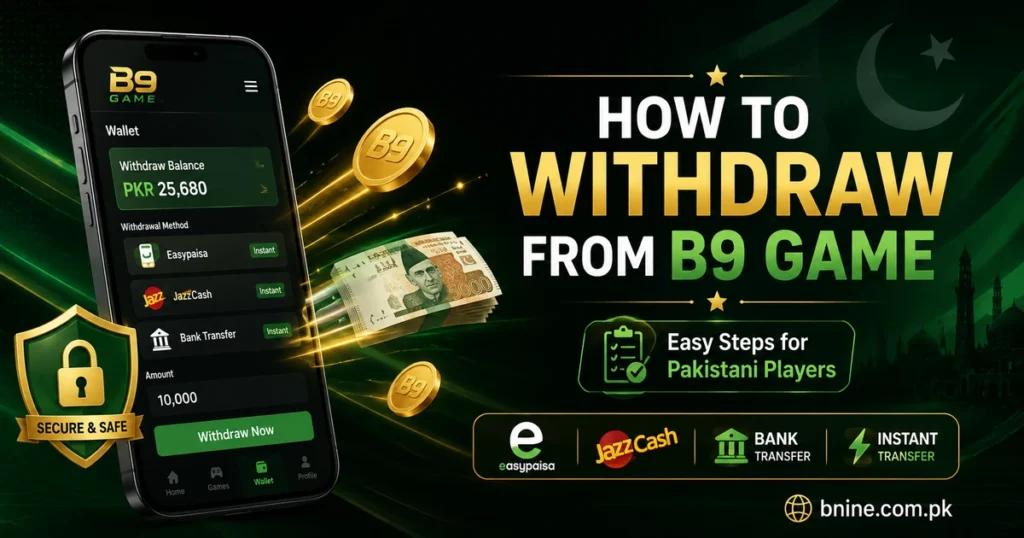
This B9 Game withdrawal guide explains how Pakistani users can request a cash-out through the options displayed inside their accounts. JazzCash and Easypaisa may appear as local withdrawal methods, while other options can depend on account availability and current payment support.
Payment methods, minimum limits, verification rules, and processing periods can change. Always follow the information shown on your own withdrawal screen instead of relying on an old screenshot, video, or social media message.
This page focuses only on withdrawing funds. For general platform information, features, and available sections, visit the B9 Game guide.
Requirements Before Requesting a Withdrawal
Complete the following checks before submitting a cash-out request.
Access Your Registered Account
You must be able to open the account linked with your wallet and transaction history.
Users who have forgotten their password, cannot receive an OTP, or are experiencing access problems should follow the B9 login guide before attempting a withdrawal.
Avoid creating another account to access funds held in an existing profile.
Check Your Withdrawable Balance
The total balance displayed in the wallet may not always be the same as the amount currently available for withdrawal.
A wallet can contain different balance types, including:
- Deposited funds
- Game winnings
- Promotional balance
- Bonus rewards
- Referral rewards
- Amounts still being processed
- Funds subject to promotional conditions
Open the withdrawal section and check the amount marked as available or withdrawable.
Complete Required Verification
Some accounts may require identity, mobile number, wallet, or payment information verification before a request can be approved.
Verification may include:
- Confirming the registered mobile number
- Entering an OTP
- Adding a withdrawal PIN
- Matching the wallet holder’s name
- Providing account information
- Completing another security step shown on the screen
Only submit genuine information that belongs to you.
Use Accurate Payment Details
A wrong mobile wallet number can send funds to the incorrect account or cause the request to fail.
Before confirming, check:
- JazzCash or Easypaisa number
- Account holder’s name
- Bank account or IBAN, where applicable
- Requested amount
- Withdrawal password or PIN
- Selected payment channel
Review every digit carefully.
Check Bonus and Turnover Conditions
A claimed bonus may have conditions that must be completed before related funds become eligible for cash-out.
Possible requirements can include:
- Minimum qualifying deposit
- Eligible game categories
- Turnover or wagering requirement
- Promotion expiry date
- Maximum withdrawal condition
- Account verification
- Restriction on combining offers
Read the current promotion terms inside your account. Do not assume that promotional funds can be withdrawn immediately.
How to Withdraw Money from B9 Game
The names of buttons may differ between versions, but the general withdrawal process usually follows these steps.
Step 1: Open Your Account
Launch the application and sign in using your registered mobile number or other available login information.
Confirm that you have entered the correct account before continuing.
Step 2: Open the Wallet
Look for a section labelled:
- Wallet
- Cash
- Balance
- Withdraw
- Cash Out
- My Account
Tap the option that displays your current account balance and transaction controls.
Step 3: Select Withdraw
Choose the withdrawal or cash-out option.
Do not accidentally select Deposit, Recharge, Transfer, or another wallet function.
Users who need to add funds instead can follow the separate B9 Game deposit guide.
Step 4: Add or Select a Payment Method
Choose an available withdrawal channel, such as JazzCash, Easypaisa, or bank transfer.
New users may need to add their payment details before the first request. Enter the information carefully and complete any verification step shown.
Step 5: Enter the Withdrawal Amount
Type the amount you want to request.
Make sure it:
- Does not exceed the available balance
- Meets the displayed minimum limit
- Remains below the maximum limit
- Follows any promotion-related conditions
- Does not contain an accidental extra digit
The amount entered should be based on the limits shown on your current screen.
Step 6: Review the Payment Details
Check the receiving account again before confirming.
Verify:
- Mobile wallet number
- Wallet provider
- Account title
- Requested amount
- Any service charge shown
- Expected amount after deductions
- Withdrawal password or security code
Do not proceed while any information appears incorrect.
Step 7: Confirm the Request
Enter the requested security information, which may include a withdrawal PIN, password, OTP, or confirmation code.
Never share these private codes with another person.
Step 8: Save the Withdrawal Record
After submission, note the withdrawal order number or transaction ID.
Take a screenshot showing:
- Requested amount
- Selected payment method
- Request date and time
- Withdrawal ID
- Current transaction status
This evidence can help if the payment is delayed.
Step 9: Check the Status
Open the withdrawal history and review the request.
Possible statuses include:
- Submitted
- Under review
- Processing
- Approved
- Successful
- Rejected
- Failed
- Cancelled
Do not submit repeated requests while the first transaction is still being processed.
Withdrawal Through JazzCash
JazzCash may appear as a withdrawal option for Pakistani users. Select it only when it is available inside your account.
JazzCash Withdrawal Steps
- Access your registered account.
- Open the wallet or cash section.
- Select Withdraw.
- Choose JazzCash.
- Add or select your JazzCash number.
- Check the account holder’s name where displayed.
- Enter an amount within the available limits.
- Confirm the cash-out request
- Save the withdrawal ID.
- Check the transaction history for updates.
- Review your JazzCash balance after the status becomes successful.
Withdrawal Through Easypaisa
Easypaisa can also be used when it appears among the active cash-out options.
Easypaisa Withdrawal Steps
- Sign in to your account.
- Open the wallet.
- Tap Withdraw or Cash Out.
- Select Easypaisa.
- Enter your active Easypaisa number.
- Type the amount you want to withdraw.
- Submit the request.
- Check the Easypaisa account after approval.
Do not enter a temporary, inactive, or incorrect mobile number. Make sure you can access the selected wallet before submitting the request.
Withdrawal Through Bank Transfer
The process may require more information than a mobile-wallet cash-out.
You may need to provide:
- Bank name
- Account title
- Account number
- IBAN
- Branch information
- Registered mobile number
Bank Withdrawal Steps
- Open the withdrawal section.
- Select Bank Transfer.
- Choose an existing bank account or add a new one.
- Enter the required bank details.
- Check the account holder’s name.
- Enter the withdrawal amount.
- Check your bank account after approval.
A spelling mistake in the account title or an incorrect IBAN can delay or reject the transfer.
Why Is a Withdrawal Pending?
A pending withdrawal means that the request has been submitted but has not yet reached its final status.
Common causes include the following.
The Request Is Being Reviewed
Some cash-out requests may require payment or account verification before approval.
Account Verification Is Incomplete
A missing mobile number confirmation, payment account verification, or another required security step can delay processing.
Wallet Details Do Not Match
The entered JazzCash, Easypaisa, or bank information may not match the user information associated with the account.
Bonus Conditions Are Incomplete
A promotional balance may remain unavailable until the displayed turnover or eligibility requirements are completed.
The Requested Amount Is Outside the Limit
Requests below the minimum or above the maximum limit can fail or remain unprocessed.
Several Requests Were Submitted
Submitting multiple withdrawals within a short period can create additional review or transaction conflicts.
Payment Service Is Delayed
A temporary issue with the app, payment provider, mobile network, or banking channel can slow down the transfer.
The Request Was Submitted During Maintenance
Withdrawal processing may be delayed while a payment channel or application service is under maintenance.
What to Do When a Withdrawal Is Pending
Follow these steps before contacting support:
- Open the withdrawal history.
- Confirm the current status.
- Check the date and time of submission.
- Recheck the selected wallet number.
- Verify that the account information is complete.
- Review any active bonus conditions.
- Check whether a processing period is shown.
- Avoid cancelling and resubmitting repeatedly.
- Save a screenshot of the request.
- Contact the official support channel if the status does not change after the displayed period.
Provide support with:
- Registered account number or user ID
- Withdrawal amount
- Selected payment method
- Request date and time
- Withdrawal order number
- Current status
- Screenshot of the transaction record
Do not provide your login password, wallet PIN, complete bank password, or OTP.
Why Was a Withdrawal Rejected?
A rejected status means that the request was reviewed but could not be approved.
Possible reasons include:
Incorrect Wallet Number
The mobile number may be invalid, incomplete, or entered under the wrong payment method.
Account Name Mismatch
The payment account holder’s name may not match the information required for verification.
Insufficient Withdrawable Balance
Part of the displayed balance may be promotional, pending, or otherwise unavailable for cash-out.
Minimum Requirement Was Not Met
The requested amount may be below the withdrawal limit shown in the account.
Promotional Conditions Were Not Completed
A bonus may still be subject to turnover or another eligibility condition.
Verification Failed
The mobile number, payment method, account identity, or security confirmation may be incomplete.
Duplicate or Unusual Requests
Repeated cash-out attempts can result in additional checking.
Incorrect Bank Details
A wrong account number, IBAN, or bank name can cause a bank transfer to fail.
How to Fix a Rejected Withdrawal
Do not immediately submit the same request again without checking the rejection reason.
Use this process:
- Open the rejected transaction.
- Read the displayed reason.
- Check the wallet or bank details.
- Confirm the withdrawable balance.
- Review active bonus requirements.
- Complete any missing verification.
- Correct the payment method information.
- Contact support when the rejection reason is unclear.
- Submit a new request only after fixing the issue.
- Save the new withdrawal ID.
Repeatedly sending the same incorrect information can result in more failed requests.
Money Shows as Successful but Has Not Arrived
A successful status can sometimes appear before the receiving wallet or bank account updates.
Check the following:
- Confirm that the entered wallet number is correct.
- Refresh your JazzCash, Easypaisa, or banking application.
- Check the payment account’s transaction history.
- Confirm that you are viewing the correct wallet.
- Save a screenshot of the successful withdrawal status.
- Note the transaction or withdrawal ID.
- Contact the official support channel if the receiving account remains unchanged.
- Contact the payment provider when a transfer reference has been issued but the funds are not visible.
Do not share private security codes while asking for transaction help.
Can You Cancel a Withdrawal?
A cancellation may be possible only while the request is still pending and when a cancel button is available.
Once a transaction has been approved, processed, or sent to a payment provider, cancellation may no longer be available.
Before cancelling, consider that:
- The balance may take time to return
- A new request may go through another review
- Repeated cancellations may create confusion
- Promotional conditions may still apply
- Payment details should be corrected before resubmission
Do not cancel and recreate the request simply because it is not completed immediately.
Withdrawal Limits
The minimum and maximum withdrawal amount should be checked on the current cash-out screen.
Limits can depend on:
- Selected payment method
- Account verification level
- Available balance
- Payment provider
- Active promotion
- Daily transaction rules
- Current service availability
- Account activity
Avoid publishing or relying on a fixed limit unless it has been verified from the latest account screen.
Withdrawal Charges and Deductions
A fee may be shown before final confirmation. The amount received can be different from the amount requested when a service charge or payment deduction applies.
Before submitting, review:
- Withdrawal amount
- Processing fee
- Payment-provider charge
- Promotional deduction
- Final receivable amount
Do not confirm the request until you understand the amount that is expected to reach your payment account.
Users who need instructions for adding funds can read the B9 Game deposit guide.
Withdrawal Safety Tips
Follow these precautions when requesting a cash-out:
- Use a payment account that belongs to you.
- Recheck every digit of the wallet number.
- Verify the account title before confirming.
- Never share your OTP.
- Never disclose your withdrawal PIN.
- Save the transaction ID.
- Keep a screenshot of pending requests.
- Do not use an unknown agent for cash-out assistance.
- Avoid sharing account access with another person.
- Do not pay an unofficial fee to “unlock” a withdrawal.
- Contact support through a verified in-app channel.
- Review bonus conditions before submitting.
- Do not submit several duplicate requests.
- Log out when using a shared device.
- Use a strong and unique password.
Warning About Fake Withdrawal Agents
Users may encounter social media accounts claiming that they can approve a pending withdrawal, increase the withdrawal limit, or unlock an account after receiving a payment.
Treat these claims as suspicious.
- Account password
- OTP
- Wallet PIN
- Advance payment
- Screen-sharing access
- Remote-control application
- Personal banking details
Do not provide this information. Use only the support or help section available through the website or application you are using.
Responsible Cash-Out Practices
Winning is not guaranteed and account balances can change through gameplay.
Use responsible practices such as:
- Withdraw part of an eligible balance instead of continuously replaying it.
- Keep gaming funds separate from household expenses.
- Do not redeposit money immediately to recover a loss.
- Avoid borrowing money for deposits.
- Set a personal spending limit.
- Review both deposit and withdrawal history.
- Stop when gameplay causes financial stress.
- Never treat gaming as guaranteed income.
- Follow applicable age and local requirements.
A successful withdrawal does not guarantee future profit.
Conclusion
The B9 withdrawal process starts from the account wallet, where users choose an available payment method, enter the amount, verify the receiving details, and complete the required security confirmation.
JazzCash and Easypaisa may provide convenient cash-out options for Pakistani users when they are available. The most important step is to enter accurate wallet information and save the withdrawal ID after submitting the request.
A pending or rejected withdrawal should not be followed by repeated cash-out attempts. Check the transaction status, review payment and bonus requirements, correct any inaccurate details, and contact the verified support channel when necessary.
Withdrawal methods, limits, charges, and verification requirements can change. Always follow the current instructions shown inside your own account.
Frequently Asked Questions
How do I withdraw money?
Open the account wallet, select Withdraw, choose an available payment method, enter the amount and receiving details, complete the security confirmation, and submit the request.
Can I withdraw through JazzCash?
JazzCash can be used when it appears as an active withdrawal option. Enter an accurate JazzCash number and verify the account details before submitting.
Is Easypaisa available for withdrawals?
Easypaisa may appear as a local payment method. Its availability can depend on the account and current payment support.
What is the minimum withdrawal amount?
Check the minimum amount displayed on your current withdrawal screen because limits may vary between payment methods and account conditions.
Why is my withdrawal pending?
A request may be pending because of account verification, payment-channel delays, wallet-detail checks, incomplete bonus conditions, or transaction review.
Why was my withdrawal rejected?
Common reasons include an incorrect wallet number, account-name mismatch, insufficient withdrawable balance, incomplete verification, or unmet promotional conditions.
Can I withdraw bonus money immediately?
Bonus funds may have turnover, eligible-game, expiry, or account-verification conditions. Read the current promotion terms before requesting a cash-out.
Can I use someone else’s JazzCash or Easypaisa number?
Using your own wallet is safer because a different account holder’s name or number may cause verification problems.
What should I do if the status says successful but money has not arrived?
Check the entered wallet number and the receiving account’s transaction history. Save the withdrawal ID and contact the official support channel if the payment remains missing.
Should I submit another request when one is pending?
No. Multiple requests can cause confusion or additional review. Wait for the current request to reach a final status or seek help through the official support option.
Can support ask for my withdrawal PIN or OTP?
You should never share a complete OTP, wallet PIN, account password, or withdrawal password with another person.
Can a withdrawal be cancelled?
It may be possible while the transaction is pending and a cancellation option is visible. Approved or processed requests may no longer be cancellable.